Introduction
Packaging a website as an app is only one part of release. You also need signed builds, complete store listings, accurate privacy disclosures, tested user journeys, and compliance with each platform’s current rules. Google Play and Apple App Store review every submission independently, and no tool can promise approval.
What store publishing involves
Google Play distributes Android apps through Play Console, usually from a signed Android App Bundle (AAB). An APK is useful for direct testing but is not normally the production format for a new Play release. Apple distributes iOS apps through App Store Connect after signing and uploading a build. A website wrapper is still subject to store quality, privacy, security, and functionality requirements.
What you need before starting
- A production website that works in the mobile runtime and a tested NativeForge project.
- A unique app name, bundle/package identifiers, icons, launch art, screenshots, and support URL.
- Privacy policy, data inventory, content rating answers, and permission rationale.
- Active Google Play and Apple Developer accounts, including signing and account verification steps.
Step-by-step release process
- Stabilize the website. Freeze major changes, verify the production domain, run security updates, and retest sign-in, payments, forms, and external links.
- Test the mobile builds. Install Android and iOS test builds on physical devices. Check fresh install, updates, network failures, accessibility, orientation, safe areas, app links, and account deletion flows where applicable.
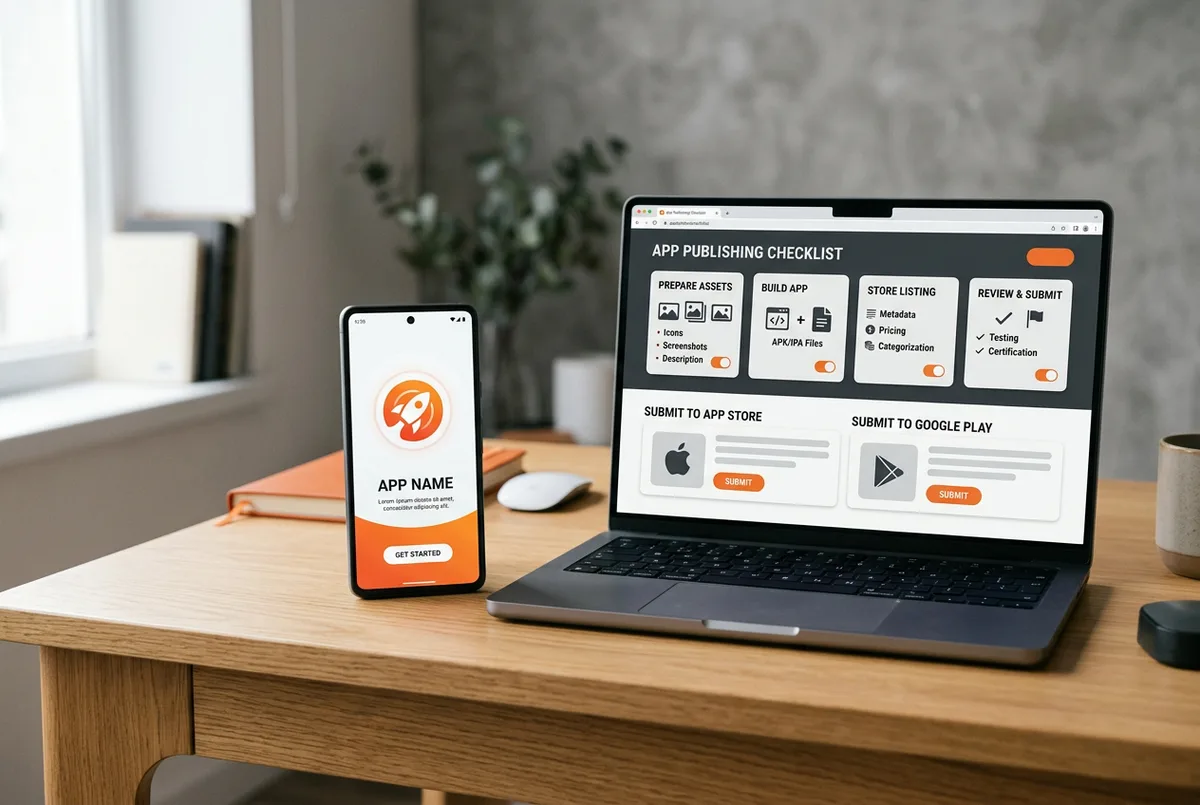
- Prepare store assets. Create accurate icons, screenshots at the required sizes, descriptions, category, support contact, and privacy policy. Store images and claims must match the app users actually receive.
- Complete privacy and content declarations. Inventory personal data and SDK behavior, disclose collection and sharing truthfully, request only necessary permissions, and provide a clear deletion/contact path. Complete age/content rating questionnaires accurately.
- Build and sign Android. Use NativeForge Studio’s current workflow to create a signed release. Use an APK for internal device checks and an AAB for Play Console. Confirm the package ID, signing key, version code, and current Play target API requirements.
- Build and sign iOS. Use the available NativeForge iOS export/build route, configure the bundle ID and signing team, then upload a signed build to App Store Connect. Test the build in TestFlight before requesting review.
- Submit and monitor. Complete the console checklists, select an appropriate rollout, submit for review, and watch for questions or rejection details. Fix the specific issue and submit a revised build when required.
Prepare the site for mobile review
The app should not strand reviewers on a blank login gate or a broken preview URL. Provide working demo credentials when the review process asks for them, explain gated functionality, and ensure all essential content and navigation work. Keep web content current and make the app feel intentional rather than like an unfinished browser shortcut.
Testing and previewing
Create a release checklist and record the tested build number. Test on representative OS versions, verify notification or location prompts only if used, and confirm checkout and account journeys. Use a staged rollout or TestFlight feedback to catch issues before a wider release.
Common problems and solutions
- Build rejected for missing information: complete privacy, age rating, export, or review-contact answers accurately.
- Signing or identifier mismatch: align the package/bundle ID and signing settings before creating the final release build.
- Reviewer cannot access content: provide required review instructions and test credentials through the store’s secure review fields.
- App seen as low-value wrapper: improve app-specific navigation, reliability, and functionality, and review the store’s current minimum-functionality policy.
- Policy changes after submission: follow the console’s current requirements rather than an old tutorial’s version numbers.
Frequently asked questions
Is approval guaranteed if the build installs?
No. A successful build proves only that the package was produced. Store review may still reject it for policy, privacy, quality, security, or functionality reasons.
Do I need an APK and an AAB?
An APK is useful for direct Android testing and sharing with testers. Google Play production releases generally use an AAB; confirm the current console requirements before submission.
How long does review take?
Review timing varies by store, app, and submission. Plan for review feedback and do not promise a fixed release date.
Next step
If you still need to package the web project, start with how to turn any website into an Android and iOS app.